Cloudberry
Introduction
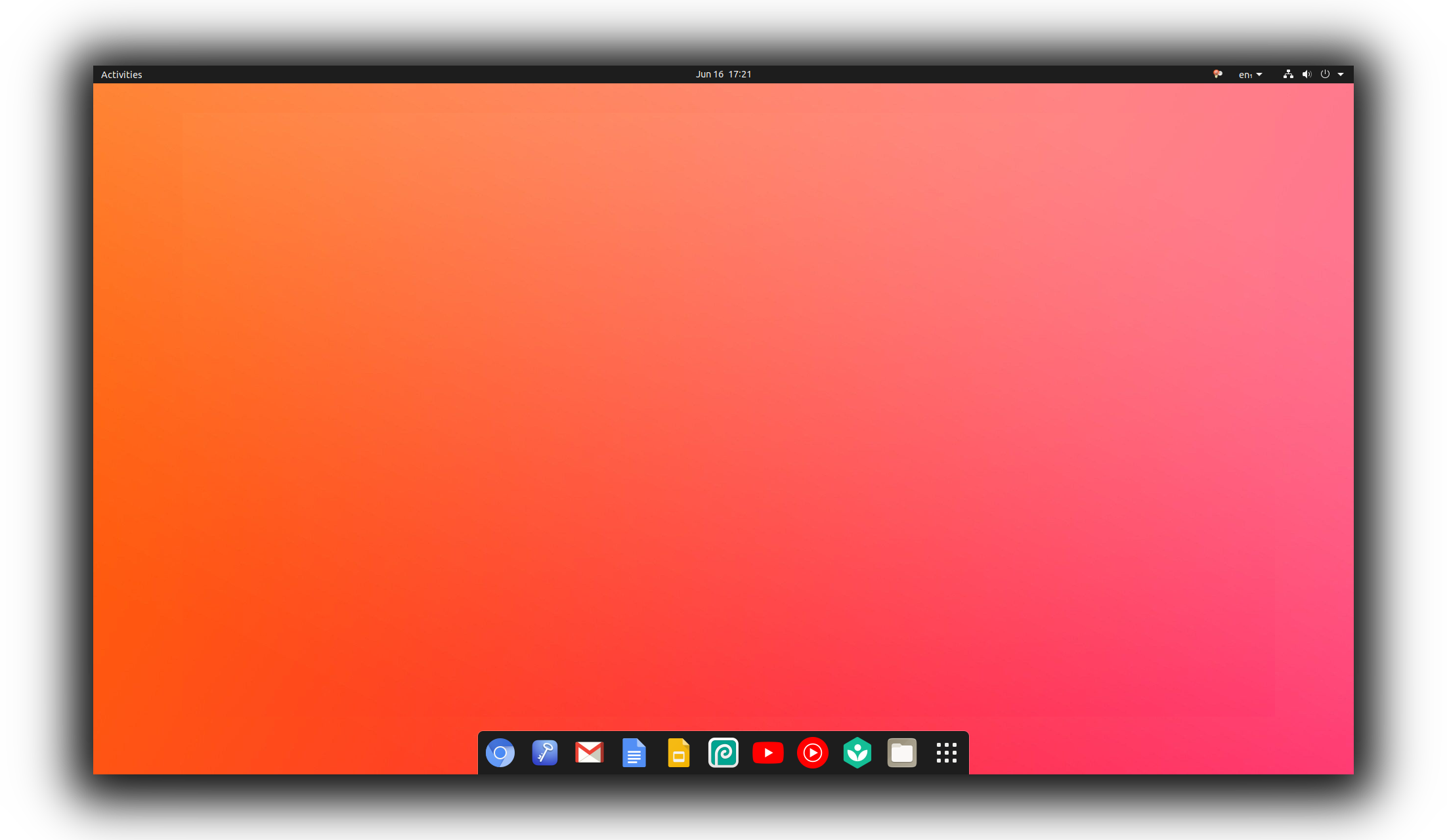
Cloudberry is a Linux desktop system based on Ubuntu Desktop 20.04, featuring subtle changes to the default GNOME Shell settings inspired by macOS and Chrome OS.
Features
- Progressive Web Applications (via Google Chrome)
- Ad-blocking (via AdGuard)
- Customizable browser home / new tab page (nightTab)
- A dock (Dash to Dock)
- Additional customization (Yaru-Colors)
- Support for Microsoft Windows applications (via Wine)

Setup
A Cloudberry iso disk image can be created using Cubic.
First, download Ubuntu Desktop 20.04 LTS and create a new Cubic project based on it.
Then, once in the virtual environment terminal:
- Uninstall Firefox, Ubuntu Dock and Snap:
apt remove --yes firefox gnome-shell-extension-ubuntu-dock gnome-software-plugin-snap snapd
- Update everything:
apt update
apt upgrade --yes
- Install Software and Tweaks:
apt install --no-install-recommends --yes gnome-software gnome-tweaks
- Install Google Chrome:
wget https://dl.google.com/linux/direct/google-chrome-stable_current_amd64.deb
apt install --yes ./google-chrome-stable_current_amd64.deb
rm google-chrome-stable_current_amd64.deb
- Install Wine:
mkdir -pm755 /etc/apt/keyrings
wget -O /etc/apt/keyrings/winehq-archive.key https://dl.winehq.org/wine-builds/winehq.key
wget -NP /etc/apt/sources.list.d/ https://dl.winehq.org/wine-builds/ubuntu/dists/focal/winehq-focal.sources
apt install --install-recommends --yes winehq-stable
- Install Yaru-Colors:
git clone https://github.com/Jannomag/Yaru-Colors
./Yaru-Colors/install.sh
Follow the installer and choose whatever you like, but don’t enable anything yet.
rm --recursive Yaru-Colors
- Configure Ubuntu:
nano /etc/update-manager/release-upgrades
Delete the contents of the file and paste in the following settings (Ctrl+Shift+V):
[DEFAULT]
Prompt=never
- Configure GNOME Shell:
cd /usr/share
Download the assets (wallpaper, sample application icons), copy them by dragging the file into Cubic’s terminal and install them:
tar --extract --file assets.tar
rm assets.tar
cd glib-2.0/schemas
nano 90_custom.gschema.override
Paste in the following settings (Ctrl+Shift+V):
[org.gnome.shell]
disable-user-extensions = false
enabled-extensions = ['desktop-icons@csoriano', 'dash-to-dock@micxgx.gmail.com', 'user-theme@gnome-shell-extensions.gcampax.github.com']
favorite-apps = ['google-chrome.desktop', 'org.gnome.Nautilus.desktop']

[org.gnome.desktop.wm.preferences]
num-workspaces = 1

[org.gnome.mutter]
dynamic-workspaces = false

[org.gnome.shell.overrides]
dynamic-workspaces = false

[org.gnome.desktop.privacy]
remember-app-usage = false

[org.gnome.desktop.background]
picture-uri = 'file:///usr/share/backgrounds/wallpaper.jpg'

[org.gnome.shell.extensions.desktop-icons]
show-trash = false
show-home = false
glib-compile-schemas .
- Install Dash to Dock:
cd gnome-shell/extensions
Download the extension, copy it by dragging the file into Cubic’s terminal and install it:
unzip dash-to-dockmicxgx.gmail.com.v69.shell-extension.zip -d dash-to-dock@micxgx.gmail.com
rm dash-to-dockmicxgx.gmail.com.v69.shell-extension.zip
cd dash-to-dock@micxgx.gmail.com
chmod 644 metadata.json
cd schemas
nano 90_custom.gschema.override
Paste in the following settings (Ctrl+Shift+V):
[org.gnome.shell.extensions.dash-to-dock]
autohide = true
transparency-mode = 'FIXED'
background-opacity = 1
custom-theme-shrink = true
dash-max-icon-size = 48
dock-position = 'BOTTOM'
hide-delay = 1.3877787807814457e-17
intellihide-mode = 'ALL_WINDOWS'
pressure-threshold = 10
running-indicator-style = 'SOLID'
show-trash = false
icon-size-fixed = true
glib-compile-schemas .
- Install User Themes (needed for Yaru-Colors):
cd /etc/skel
mkdir --parents .local/share/gnome-shell/extensions
cd .local/share/gnome-shell/extensions
Download the extension, copy it by dragging the file into Cubic’s terminal and install it:
unzip user-themegnome-shell-extensions.gcampax.github.com.v42.shell-extension.zip -d user-theme@gnome-shell-extensions.gcampax.github.com
rm user-themegnome-shell-extensions.gcampax.github.com.v42.shell-extension.zip
cd user-theme@gnome-shell-extensions.gcampax.github.com
chmod 644 metadata.json
Now, finish creating the iso using Cubic. The next part can be done after installing the iso on a computer.
- Open and configure Google Chrome:
- install AdGuard and nightTab
- for each desired web application (e.g. Gmail, YouTube, YouTube Music, Khan Academy, etc.):
- visit the website (and log in)
- create a shortcut (3 dots menu -> More Tools -> Create shortcut…)
- a
desktopfile will apear in~/Desktop; delete it - (optional) find the new application in the application menu and add it to the Dock (right click -> Add to Favorites)
0f78106 @ 2023-07-12